
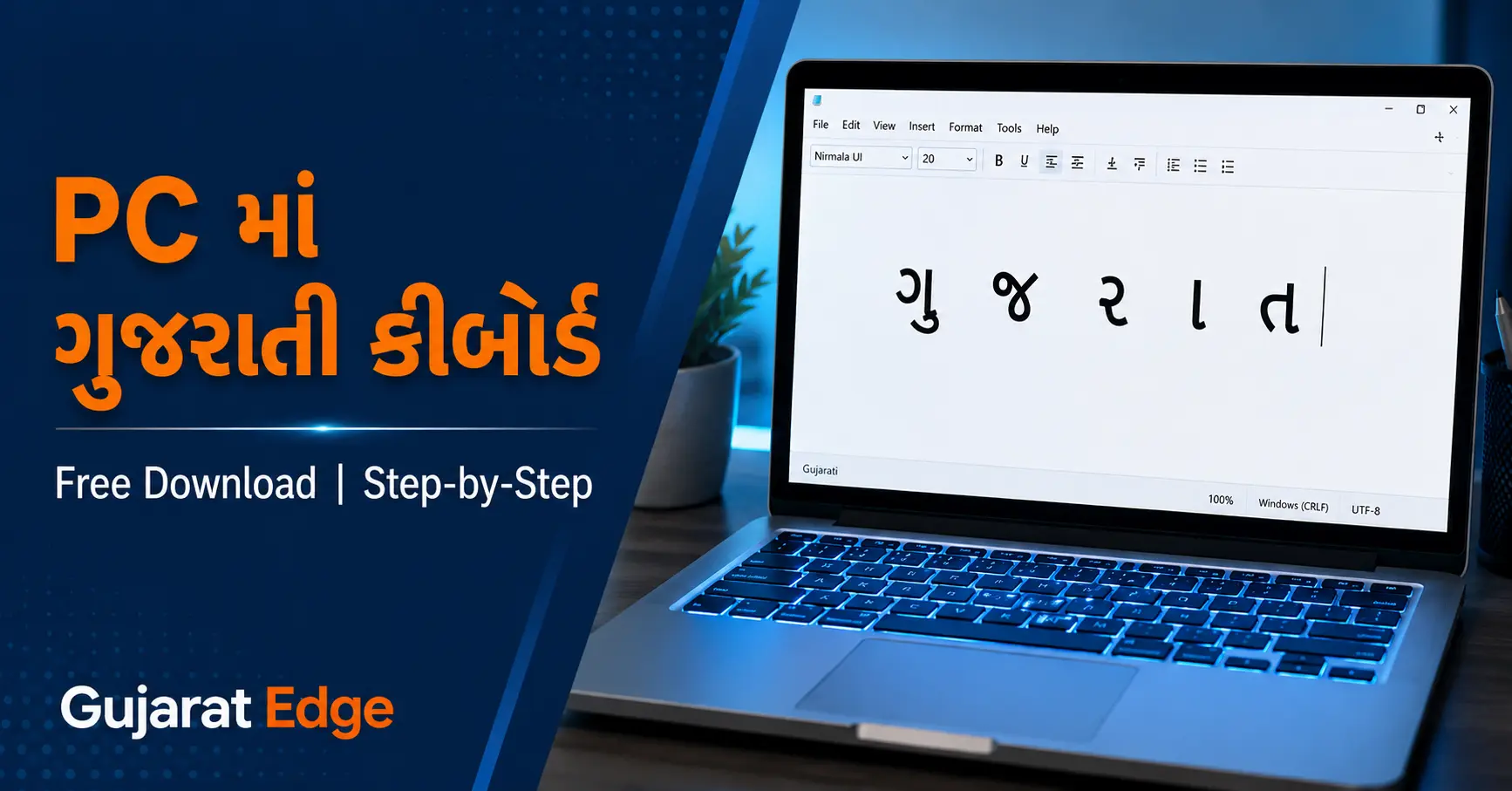
ઘણા લોકોને એક સામાન્ય સમસ્યા આવે છે — Computer પર ગુજરાતીમાં ટાઇપ કરવું છે, પણ ખબર નથી પડતી કે ક્યાંથી શરૂ કરવું. Office નું કામ હોય, WhatsApp Web હોય, Email હોય, Document હોય — ગુજરાતી ટાઇપિંગ ની જરૂર ઘણી જગ્યાએ પડે છે. સારી વાત એ છે કે PC માં ગુજરાતી કીબોર્ડ Install કરવું એ આજે ખૂબ સરળ છે — અને સૌથી ઉત્તમ Options બિલ્કુલ ફ્રી છે.
આ Article માં અમે 3 Best Methods Step-by-Step સમજાવ્યા છે — Windows 11, Windows 10 અને Windows 7 — ત્રણેય માટે.
ગુજરાતી કીબોર્ડ PC માટે — 3 Best Free Options
PC માટે ગુજરાતી ટાઇપ કરવા 3 સૌથી Popular અને Free Methods છે:
Method 1 — Google Input Tools (Gujarati): Internet જોઈએ, Online ટાઇપ માટે Best.
Method 2 — Gujarati Indic Input 3 (Microsoft): Offline software, Windows 11/10/8 માટે Best. Government Exams અને Official Work માટે સૌથી Recommended.
Method 3 — Windows Built-in Gujarati Keyboard: Extra Software Download વગર — Windows Settings માંથી Direct.
Method 1: Google Input Tools — ઓનલાઇન ગુજરાતી ટાઇપ
Google Input Tools Gujarati Install કર્યા વગર Browser Extension ના રૂપ માં ઉપલબ્ધ છે. Chrome Browser ઉપયોગ કરતા હો તો આ સૌથી ઝડપી Option છે.
Step 1: Google Chrome ખોલો, Chrome Web Store માં જાઓ.
Step 2: Search કરો “Google Input Tools”.
Step 3: “Add to Chrome” Button ક્લિક કરો — Extension Install થઈ જશે.
Step 4: Extension Icon ઉપર ક્લિક કરો → “Extension Options” → Language List માં Gujarati Select કરો → Save.
Step 5: હવે Browser ના ઉપર Right Corner માં “A” Icon દેખાશે. ત્યાં Click કરીને Gujarati Select કરો — ગુજરાતી ટાઇપ Start!
ઉપયોગ: English માં Type કરો, Software Gujarati માં Convert કરે. જેમ “namaskar” type કરો → “નમસ્કાર” આવે.
મર્યાદા: Internet Connection જોઈએ. Offline Documents (MS Word etc) માં Direct ઉપયોગ ન થઈ શકે.
Method 2: Gujarati Indic Input 3 — Offline Best Software (Windows 11/10)
આ Microsoft નું Official Software છે. Government Employees, Students, Content Writers — સૌ માટે Recommended. Internet વગર, PC ના કોઇ પણ Application માં ગુજરાતી ટાઇપ થઈ શકે.
Download કેવી રીતે કરવું?
Step 1: Google Search કરો “Gujarati Indic Input 3 download Microsoft” અથવા India Typing ની Official Site gujarati.indiatyping.com ઉપર જાઓ → Downloads Section.
Step 2: તમારા PC નો Type ચેક કરો — 32-bit કે 64-bit?
- Windows 11/10 PC — Settings → System → About → System Type માં જુઓ
- Windows 11/10 PC — 64-bit ડાઉનલોડ લો
Step 3: Gujarati Indic Input 3 (64-bit) ની .msi File Download કરો. File Size લગભગ 6-7 MB જ છે.
Install કેવી રીતે કરવું?
Step 4: Download ફોલ્ડર ખોલો, .msi File ઉપર Double Click કરો.
Step 5: Installation Window ખુલશે — “Next” ક્લિક કરતા રહો, 2-3 ક્લિક માં Installation Complete.
Step 6: PC Restart કરો.
Windows 11 માં Setup કેવી રીતે કરવું?
Step 7: Restart પછી Taskbar ના Right Side માં “ENG” લખ્યું દેખાશે — ત્યાં Click કરો → “More Keyboard Settings” Select કરો.
Step 8: Settings Window ખુલશે → “Typing” ઉપર Click કરો.
Step 9: “Advanced Keyboard Settings” ઉપર Click કરો.
Step 10: “Switching input methods” ના બંને Checkbox Tick કરો → Apply → OK.
Step 11: હવે Taskbar ના Right Corner માં Language Bar દેખાશે. ત્યાં Click કરો → “Gujarati Indic Input 3” Select કરો → ગુજરાતી Keyboard Active!
Tip: English અને Gujarati વચ્ચે Switch કરવા Alt + Shift Press કરો — ઝડપથી Language બદલી શકો.
Windows 10 માં Setup:
Step 7: Taskbar ની Right Side માં “ENG” ઉપર Click → “Language Preferences” Select.
Step 8: “Keyboard” ઉપર Click કરો.
Step 9: “Switching input methods” ના Checkbox Tick કરો → Apply.
Step 10: Taskbar માં Language Bar Show થશે → Gujarati Indic Input 3 Select → ટાઇપ Start!
Method 3: Windows 11 Built-in Gujarati Keyboard — Extra Download વગર
Windows 11 અને Windows 10 માં External Software Install કર્યા વગર, Built-in Gujarati Phonetic Keyboard Direct Add કરી શકાય. Government of India ના Microsoft Support Page અનુસાર, Gujarati સહિત 10 Indian Languages Built-in Phonetic Keyboard Windows 11 માં Available છે.
Step 1: Start → Settings → Time & Language → Language & Region ઉપર જાઓ.
Step 2: “Add a Language” Button ઉપર Click કરો.
Step 3: Search Box માં “Gujarati” Type કરો → “ગુજરાતી (India)” Select કરો → “Next” → “Install”.
Step 4: Download Complete થયા પછી, Taskbar ના Right Side માં “ENG” ઉપર Click કરો.
Step 5: “ગુજ (ગુજરાતી)” Select કરો — ગુજરાતી Keyboard Active!
ઉપયોગ: English Keyboard ઉપર Type કરો — Phonetic Style, “na” Type કરો → “ના” આવે, “gu” → “ગુ” આવે — Learning Time લગભગ Zero.
કયો Method Best છે? — સરળ ભાષામાં
કયો Method Best છે? — સરળ ભાષામાં
| ઉપયોગ | Best Method |
|---|---|
| Office/Word Document Offline ટાઇપ | Gujarati Indic Input 3 |
| Browser/Online ટાઇપ | Google Input Tools |
| Extra Download ન કરવું | Windows Built-in |
| Government Exam Typing Test | Gujarati Indic Input 3 |
| Beginner — પ્રથમ વખત | Google Input Tools |
Gujarati Indic Input 3 — Available Keyboard Layouts
Gujarati Indic Input 3 Install કર્યા પછી 6 અલગ-અલગ Keyboard Layouts Available થાય:
1. Gujarati Transliteration: English Keys ઉપર Type, Gujarati Output — Beginners માટે Best.
2. Gujarati Inscript: Standard Government Keyboard Layout — Govt Exams માટે.
3. Gujarati Typewriter: Old Gujarati Typewriter Keys ઉપર Based.
4. Godrej Indica: Godrej Typewriter Layout.
5. Remington Indica: Remington Typewriter Based Layout.
6. Special Characters: Gujarati ના Special Characters ટાઇપ કરવા.
ગુજરાતી ટાઇપ ન થઈ રહ્યું? — Common Problems અને Solutions
Problem 1: Software Install કર્યા પછી Language Bar ન દેખાય
→ PC Restart કરો. Taskbar ના Right Side ઉપર Right Click → Toolbars → Language Bar Enable કરો.
Problem 2: Space Bar 2 વખત Press કરવો પડે
→ Indic Input 2 Install કર્યું છે — Indic Input 3 Download કરો. Input 3 માં Space Bar Problem નથી.
Problem 3: ગુજરાતી Fonts ટૂટેલા દેખાય
→ Windows Language Pack Install ન થયો. Settings → Language → ગુજરાતી Language ઉપર ક્લિક → “Language Features Download” ઉપર ક્લિક કરો.
Problem 4: Alt + Shift Press કરવા છતાં Language Switch ન થઈ
→ Advanced Keyboard Settings → Switching input methods → બંને Checkbox Tick ન કર્યા — ઉપર Step 9 ફરીથી Follow કરો.
FAQ — વારંવાર પૂછાતા સવાલ
PC માટે ગુજરાતી કીબોર્ડ Free છે?
હા — Google Input Tools, Gujarati Indic Input 3 અને Windows Built-in Keyboard — ત્રણેય સંપૂર્ણ Free છે.
Windows 11 PC માટે ક્યો Software Best છે?
Gujarati Indic Input 3 — Offline, Fast, Reliable. Windows 11/10/8 ત્રણેય માટે.
Gujarati ટાઇપ કરવા Internet જોઈએ?
Google Input Tools માટે Internet જોઈએ. Gujarati Indic Input 3 અને Windows Built-in — Offline ચાલે.
Government Exam Typing Test માટે ક્યો Use કરવો?
Gujarati Indic Input 3 — Inscript Layout — Government Exams Standard Layout.
Mobile App PC માં ચાલશે?
ના. PC માટે ઉપર આપેલ 3 Methods Use કરો. Mobile App PC ઉપર Direct ન ચાલે.
છેલ્લી વાત
PC ઉપર ગુજરાતી ટાઇપ કરવું 2026 માં ખૂબ સરળ છે. Gujarati Indic Input 3 — Offline Documents, Office Work, Government Exams — ત્રણે માટે Best Choice. Google Input Tools — Browser અને Online Work માટે. Windows Built-in — Quick Setup, Extra Download ન કરવું હોય ત્યારે.
ઉપરના Steps Follow કરો, 5 Minute માં PC ઉપર ગુજરાતી ટાઇપ Start!
જો Step Follow કરવા છતાં Problem આવે, તો નીચે Comment માં લખો — અમે Help કરીશું.
આ અહેવાલ Gujarat Edge દ્વારા તૈયાર કરવામાં આવ્યો છે. ગુજરાતના તાજા સમાચાર, Technology અને Education Updates સૌથી પહેલા મેળવવા Gujarat Edge ની મુલાકાત લો.
વધુ વાંચો: ટેકનોલોજી સમાચાર | શિક્ષણ અને નોકરી